POS Systems Explained: A Plain-English Guide for Shop Owners
Every shop has a moment when money changes hands. A POS system is the software that records that moment properly. This guide explains what one does, what it costs, what hardware you really need, and how to know whether your counter still works fine on paper — all without assuming you have ever used one before.
What “point of sale” actually means
“Point of sale” is not a technical term. It is simply the place and the moment where a sale is completed — the counter where a customer hands over money or agrees to pay later, and walks away with goods. In a grocery store it is the checkout. In a hardware shop it might be a desk at the back. In a wholesale business it can be a warehouse gate where a loader counts out cartons.
A POS system is software built for that moment. Its job sounds small: find the items, calculate the total, take the payment, produce a receipt, and keep a record. What makes it valuable is that it does those five things the same way every single time, whoever is standing at the counter, however busy the shop is, and however tired everyone gets by evening.
It helps to be clear about what a POS system is not. It is not an accounting package, although it feeds numbers into one. It is not a cash register, although it usually replaces one. A traditional cash register stores amounts; it has no idea what was sold. A POS system knows the item, the quantity, the rate, the discount, who sold it, and at what time. That difference — knowing what was sold, not just how much — is where almost all of the benefit comes from.
What happens during one sale
The easiest way to understand a POS system is to walk through a single transaction. A customer puts three items on the counter: a packet of tea, two bars of soap, and a five-kilo bag of flour.
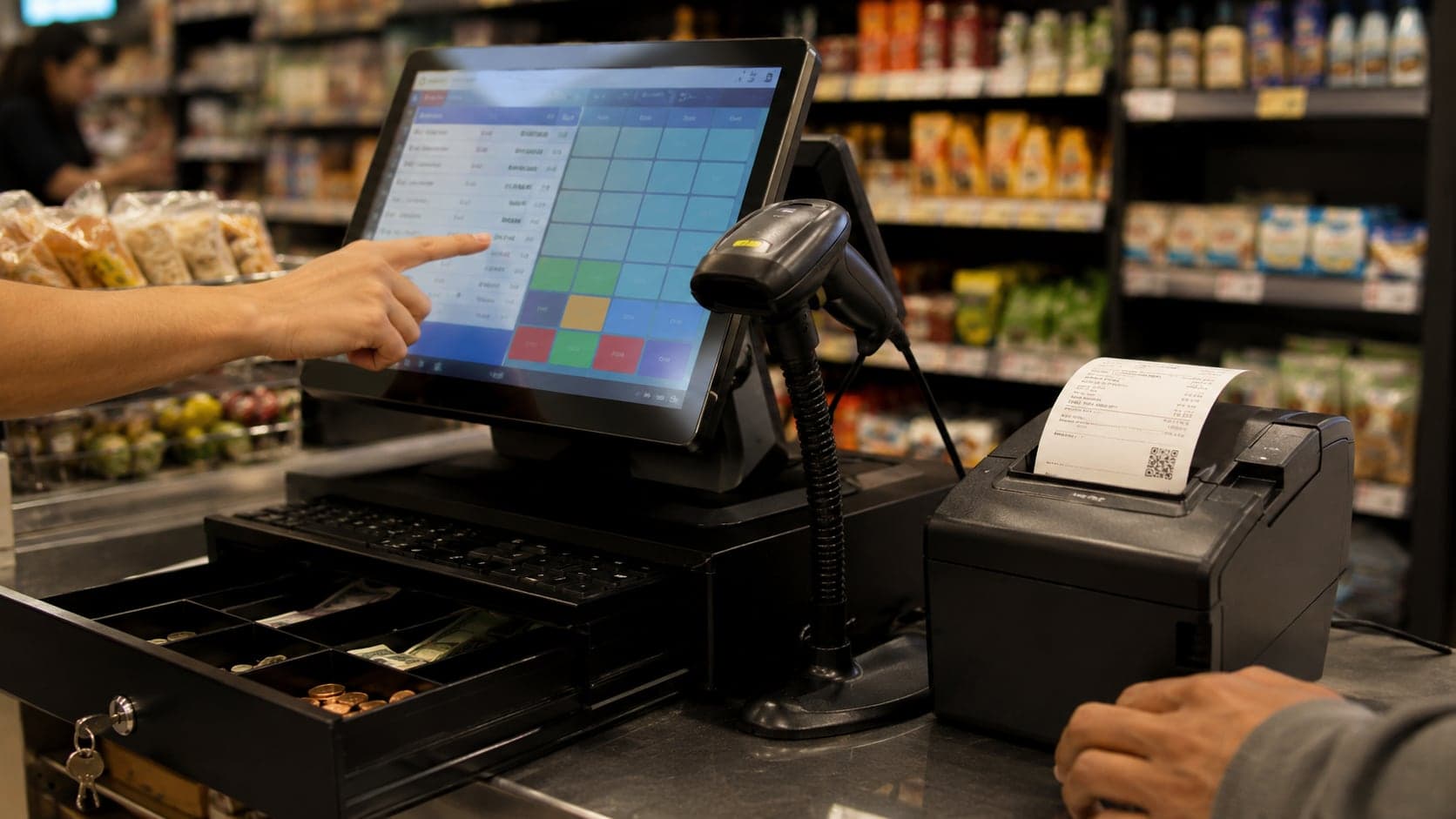
First, the items are entered. If they carry barcodes, the cashier scans them and each line appears with its name and price. If not, the cashier types a few letters of the name and picks the item from a list. For the soap, they change the quantity to two. Nothing is written by hand, and no price needs to be remembered, because the price was stored when the product was first added to the system.
Second, the total is calculated.The system adds the lines, applies any discount the cashier is allowed to give, and adds tax if the shop charges it. There is no mental arithmetic and no calculator sitting beside the bill book. If the customer asks “how much without the flour?”, the cashier removes the line and the total updates instantly.
Third, payment is recorded.Cash, card, bank transfer, mobile wallet, or “put it on my account” — the method matters, because at closing time you will want to know how much of today's sales is actually in the drawer and how much is owed to you. A good system also handles the awkward in-betweens: part cash and part credit, or an advance paid last week against today's bill.
Fourth, a receipt is produced. Usually a thermal slip; sometimes an A4 or A5 invoice for a business buyer who needs a formal document. Both come from the same sale record, so the numbers always match. (Receipt hardware is a topic of its own — see our guide to receipt printing.)
Fifth, the record is kept.The sale is stored with a number, a timestamp, and the name of the cashier who made it. Stock levels for tea, soap, and flour drop automatically. This last, invisible step is the real reason shops buy POS software: the day's history builds itself while people simply do their jobs.
One more thing happens at busy counters that paper cannot handle gracefully: the customer forgets their wallet in the car, or takes a phone call and steps aside. A POS lets the cashier hold the unfinished bill, serve the next person, and resume the held sale later without retyping anything. Small feature, big difference on a Saturday.
What the system records, and why that matters
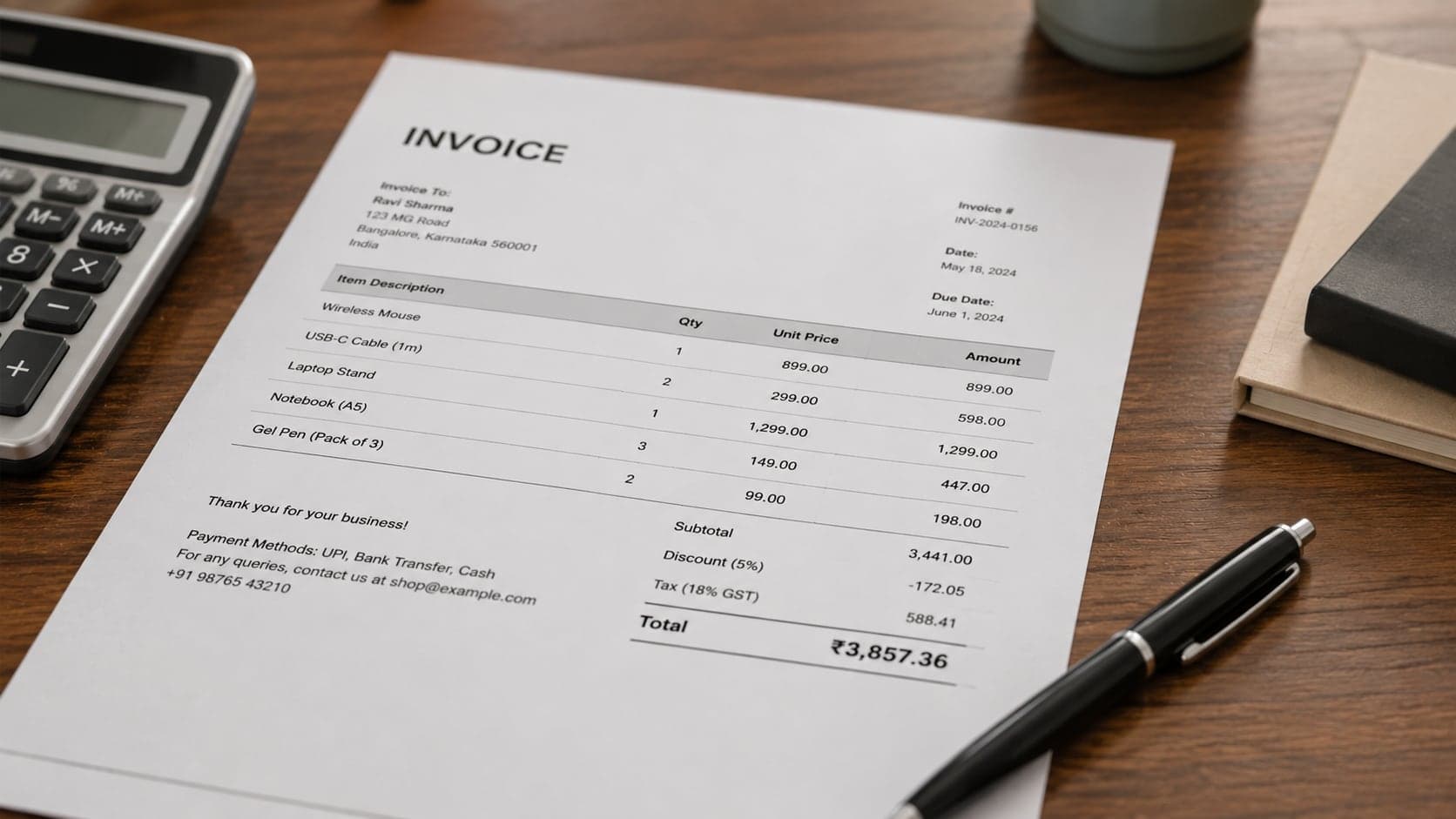
Every completed sale writes a small bundle of facts: which items, what quantities, what prices, what discount, what tax, what payment method, which staff member, what time. Multiply that by every sale in a month and you have something paper can never give you — a truthful diary of the business.
That diary answers questions owners otherwise guess at:
- Which twenty products bring in most of the revenue, and which two hundred just occupy shelf space.
- What time of day the shop actually earns — useful when deciding opening hours or when a second cashier is worth paying for.
- Whether the discount being given away at the counter is a sales tool or a leak. Five percent “here and there” can quietly exceed the shop's entire profit margin.
- How much of the month's sales went out on credit, and to whom. Credit that is not written down precisely tends to be remembered generously by the customer and vaguely by the shop.
- What was sold by which employee — not to spy on anyone, but because two honest people can never reconstruct a disputed sale from memory.
None of this requires extra work. It falls out of using the counter properly. That is the quiet bargain a POS system offers: do the sale the normal way, and the records you never had time to keep appear on their own.
The hardware: what you need and what you can skip
Shops often delay buying software because they imagine an expensive counter full of equipment. In reality, most modern POS software runs in a web browser or as a simple app, and the minimum setup is whatever device you already own.
Usually worth having
- A computer, laptop, or tablet. Nothing special. A five-year-old laptop is fine for a single counter. Touch screens are pleasant but optional.
- A barcode scanner. A basic wired USB scanner is inexpensive and behaves like a keyboard: point it at a code and the item appears. If most of your products carry manufacturer barcodes, this is the single best speed upgrade you can buy.
- A thermal receipt printer. Prints on 58 mm or 80 mm rolls, needs no ink, and produces the familiar shop slip.
Often skippable at the start
- A cash drawer that opens automatically. Nice discipline, not a requirement. A locked drawer with a routine works.
- A customer-facing display. Helpful in high-volume groceries; unnecessary in most counters.
- Label printers. Only needed once you decide to barcode items that do not come pre-coded. Many shops run for months on manufacturer barcodes alone.
- Weighing-scale integration. Matters for loose goods sold by weight; irrelevant for everyone else.
A reasonable rule: start with the device you have plus a scanner and a receipt printer, and let real friction — not a sales brochure — tell you what to add next.
Cloud POS vs installed POS
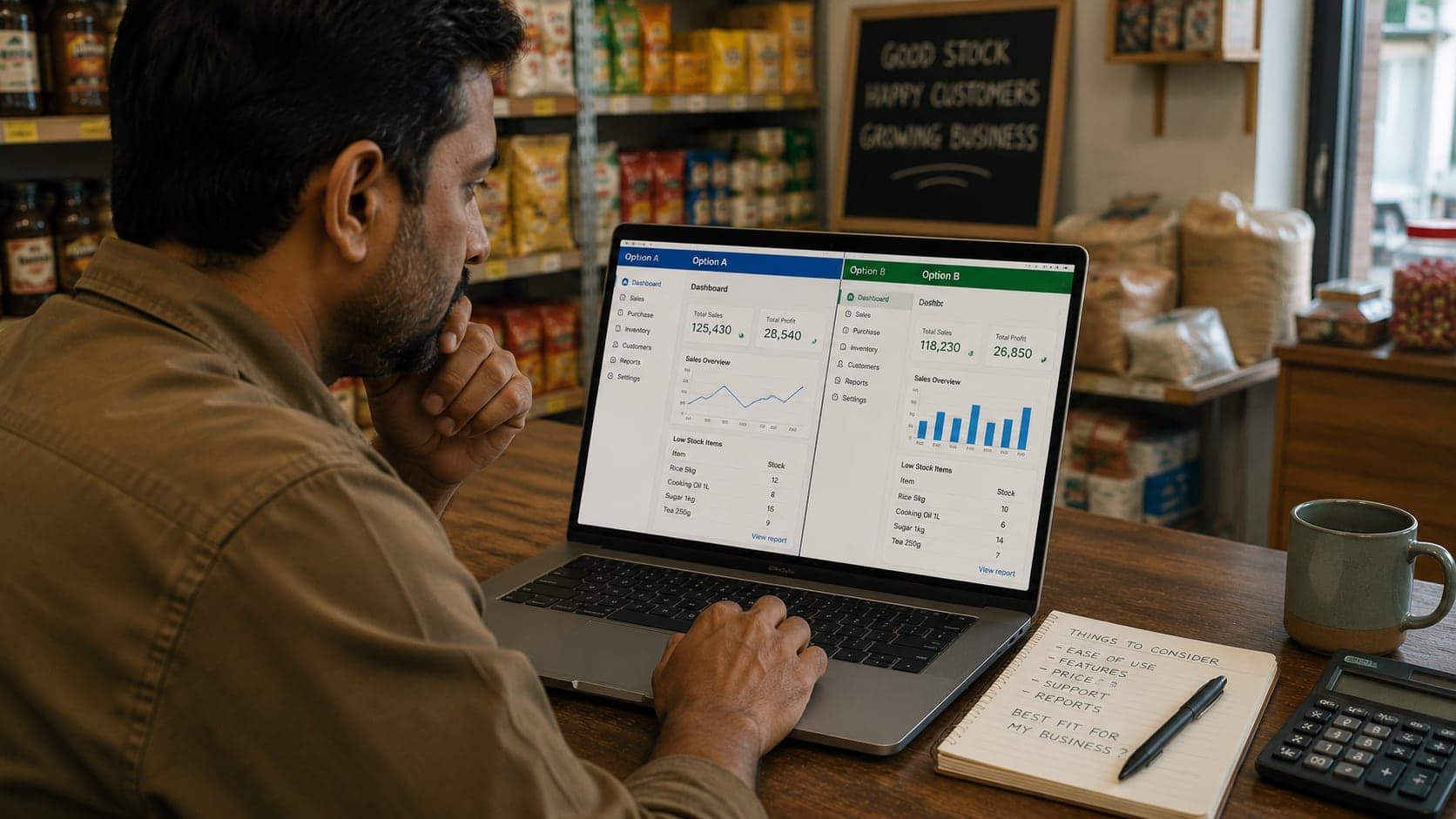
POS software comes in two broad shapes. Installed (desktop) software lives on one computer in the shop, and its data lives there too. Cloudsoftware runs on the vendor's servers; you use it through a browser or app, and the data is stored centrally. Neither is automatically better — they fail in different ways, and the honest comparison looks like this:
| Question | Cloud POS | Installed POS |
|---|---|---|
| What if the internet drops? | The main weakness. Some products offer an offline mode that syncs later; many do not. Ask this question first. | Keeps working — its data is local. |
| What if the computer dies? | Sign in from any other device and continue. Nothing is lost. | The main weakness. Without disciplined backups, years of records can vanish with one failed hard drive. |
| Checking the shop from home | Built in — open the dashboard anywhere. | Usually impossible, or requires clumsy remote-desktop arrangements. |
| Updates and fixes | Applied by the vendor for everyone at once. | Manual. Old installations tend to stay old until something breaks. |
| Typical pricing | Monthly or yearly subscription per shop or per counter. | One-time licence, sometimes with paid annual support. |
| Several branches | Natural fit — every branch writes to the same central data. | Hard. Each branch becomes an island that must be merged by hand. |
The practical way to decide: if your internet connection is reasonably dependable, or the product has a genuine offline mode, cloud software removes the two scariest risks a small shop faces — a dead computer and a stolen one. If your connection fails for hours every day, an installed system with a strict daily backup routine (copy to a USB drive and somewhere outside the shop) is the safer compromise.
Retail counters vs wholesale counters
Software brochures treat “a shop” as one thing, but a retail counter and a wholesale counter are different jobs, and a POS that fits one can frustrate the other.
Retailis many small, fast, anonymous sales. Twenty customers an hour, two to ten items each, almost all paid immediately. The priorities are speed of entry (scanning), a queue that never stalls, and a receipt in the customer's hand within seconds. The system rarely needs to know who the buyer is.
Wholesaleis fewer, larger, named sales. A retailer buys forty cartons on thirty-day credit at a negotiated rate that differs from what the next buyer pays. The priorities are per-customer pricing, quantities in alternate units (cartons versus pieces), running account balances, and invoices formal enough to pass another business's bookkeeping. Speed matters less; accuracy of the account matters enormously.
Many businesses are both — a counter for walk-ins at the front, bulk dispatch at the back. If that is you, test specifically whether one system handles both flows, or whether the “wholesale support” is a retail screen with bigger quantity boxes. The giveaway questions: can two customers have two different prices for the same item, and can a sale post to a customer's account instead of being paid on the spot? If credit accounts are a large part of your business, our shop accounting guide covers how those ledgers should work.
What a small shop actually needs
Feature lists are where small-shop buyers get lost. Vendors compete by adding modules, and the result is software where the useful ten percent hides behind menus built for supermarket chains. For a one-or-two-counter shop, the honest requirements are short:
- Fast item entry by scan or by typing part of a name.
- Editable quantity, rate, and line discount during the sale.
- Cash and credit payment, including part payments.
- Hold and resume for interrupted sales.
- Receipt printing that works with an ordinary thermal printer.
- A sales history you can search by day, item, or customer.
- Stock that decreases automatically when you sell.
- Separate logins for staff, so the owner's controls are not shared with the counter.
Everything beyond that list — loyalty schemes, e-commerce sync, kitchen displays, franchise dashboards — is legitimate for somebody, but it is not what makes or breaks a small shop's first year with a POS. Buy for the list above, confirm the basics feel fast, and treat extra modules as a bonus rather than the reason to choose.
A note on staff logins, because owners often underrate them until the first dispute: a login is not about mistrust. When every sale, void, and discount carries a name, most arguments simply never start. The cashier is protected as much as the owner is.
Running more than one branch
The second branch is where paper systems and single-computer software both quietly fail. The problems are predictable: nobody knows total sales without phone calls at closing time, stock sits unsold in one branch while the other keeps reordering it, and prices drift apart because each counter maintains its own list.
A multi-branch setup should give you three specific things:
- One product catalog. An item is created once, with its price, and every branch sells from that definition. Change the price centrally and every counter is correct within the minute.
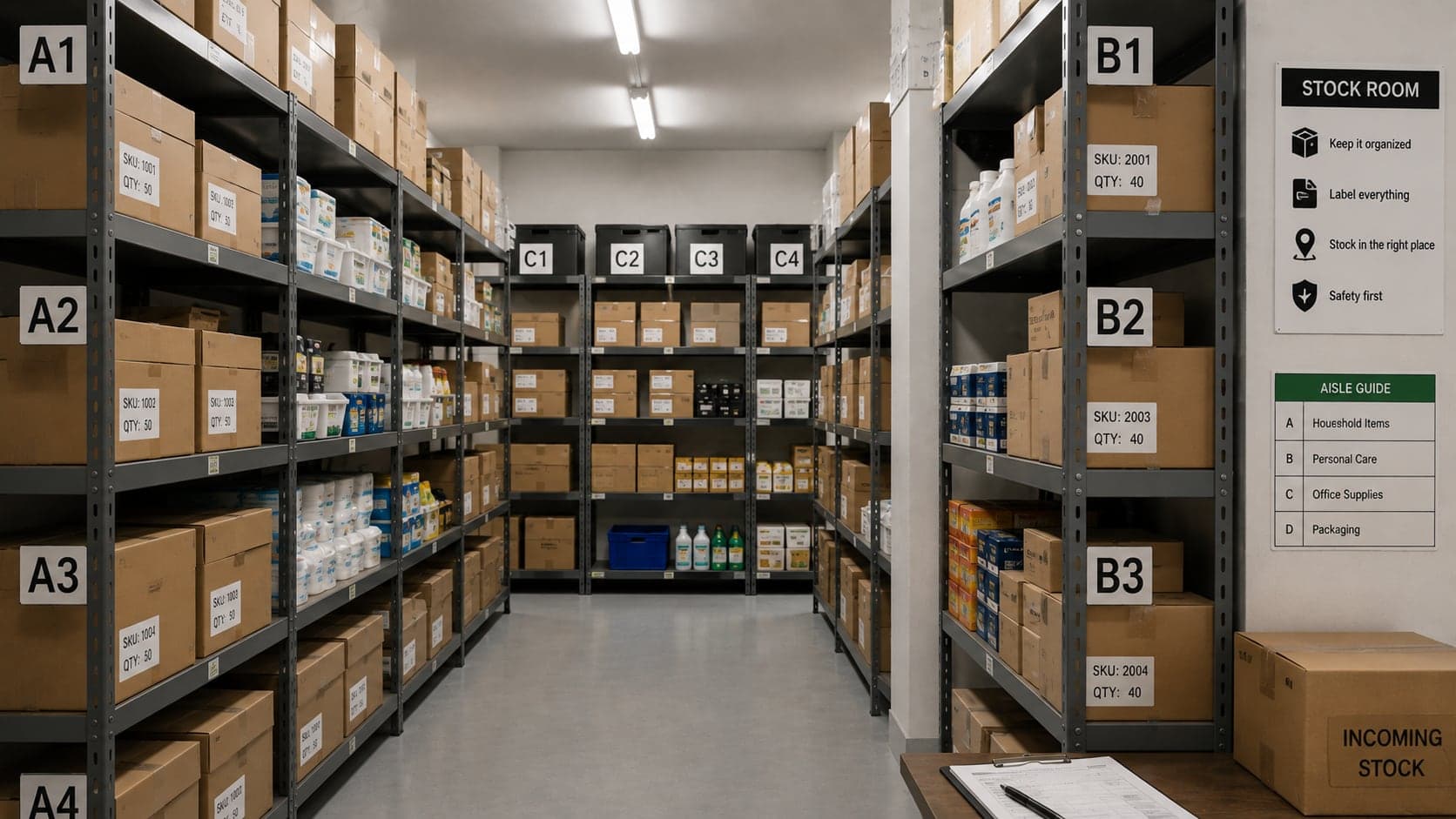
- Stock tracked per branch. Combined totals hide problems. You need to see that Branch A holds sixty units and Branch B two, and ideally record a transfer between them instead of pretending goods teleport.
- Roles that limit reach. A branch manager sees and manages their branch. The owner sees everything. A cashier sees the counter. Without this, every hire at every branch effectively holds keys to the entire business.
This is also the point where cloud architecture stops being a preference and becomes close to mandatory. Merging weekly exports from four independent desktop installations is a job everyone abandons within a month. If a second branch is anywhere in your plans, weight your software choice toward it now — migrating later is far more disruptive. Our software buyer's guide includes a section on evaluating exactly this.
What a POS system costs
Prices vary by country and product, so treat these as shapes rather than quotes. Cloud POS subscriptions for small shops commonly run from a few dollars to a few tens of dollars per month per location. Installed licences commonly cost a few hundred dollars once, sometimes with an annual support fee of ten to twenty percent of the licence. Hardware, if you buy it all new — mid-range laptop, scanner, thermal printer — typically lands somewhere between 300 and 700 dollars, and much less if you already own the computer.
The costs that surprise people are rarely the sticker prices:
- Data entry time. Someone must type in your products — names, rates, barcodes. For a two-thousand-item shop that is real days of work. It is also the step that kills most failed adoptions, so budget time for it deliberately.
- Training and the slow week. The first week on any system is slower than paper. Plan it for your quiet season, not the festival rush.
- Receipt paper. A running cost of roughly one to two cents per receipt. Trivial per sale, worth knowing per year.
- Leaving. Ask before you sign: can you export your products, customers, and history if you switch products later? The answer tells you whether you are buying a tool or entering a cage.
Against that, put the costs of the status quo: pricing mistakes at the counter, unrecorded credit, stock bought twice because nobody knew it was in the storeroom, and evenings spent rebuilding the day in a notebook. Most shops that switch do not describe the software as an expense for long.
Moving from paper: mistakes to avoid
The switch from a bill book to software fails more often for human reasons than technical ones. The pattern is consistent enough that you can plan around it:
- Entering the full catalog before selling anything. Owners burn out at item eight hundred and give up. Enter your fastest-moving hundred items and start selling; add the tail as it comes to the counter.
- Running paper and software “for safety” indefinitely. A short parallel period is sensible. After two weeks it becomes double work, staff resent it, and one of the two records silently becomes fiction. Set an end date.
- Keeping prices in heads anyway. If the cashier still shouts to the back for a rate, the system is decoration. The stored price must be the real price, and price changes must happen in the system first.
- Sharing one login. It feels convenient and erases exactly the accountability you paid for.
- Skipping the test sale. Before the first real customer, run twenty fake sales: cash, credit, discount, held bill, return. Ten minutes of play prevents the Saturday-morning panic.
What the first day itself should look like, hour by hour: open with a counted float and enter it; put your most fluent person on the till for the morning; keep the price notebook physically present but consult it only to correct the system, never instead of it; hold the first day's close as a teaching session with everyone who sells — count the drawer against the day-close screen together, so the whole team sees what the system is for. Expect to be perhaps twenty percent slower than paper on day one, level by day three or four, and faster within the week. If the counter is still slower after two honest weeks, stop and look at the workflow — usually one step (a slow product search, a printer dialog) is eating all the gains, and it is fixable in settings rather than by abandoning ship.
And one small mercy for future-you: the day you go live, write down the date, the opening float, and the first bill number on a page taped inside the drawer. When anyone later asks “since when do we have records?”, the answer will be taped to the question.
Signs you have outgrown paper billing
Paper is not shameful. A slow counter with thirty sales a day, one trusted person, and no credit can run on a bill book for years. The honest signals that you have crossed the line are these:
- Queues form because totals are computed by hand.
- More than one person sells, and end-of-day cash rarely matches anyone's expectation.
- Credit customers exist, and their balances live in a notebook that only one person can interpret.
- You have been surprised by stock — either a shelf gap for a fast seller or a carton of something you already had.
- Prices change often enough that handwritten lists are crossed out more than they are written.
- You cannot answer “what did we sell last Tuesday?” in under a minute.
Two or more of those, felt weekly, and the switch will pay for itself faster than you expect. One of them, felt occasionally, and you can honestly wait.
Glossary of POS terms
Vendor websites use these words as if everyone was born knowing them. Plain meanings:
- SKU (stock keeping unit)
- Your internal code for one sellable thing. “Blue mug, large” and “blue mug, small” are two SKUs.
- Line item
- One row on a bill: item, quantity, rate, amount.
- Void
- Cancelling a sale or a line before it is completed. Good systems record who voided what, and when.
- Hold / park
- Setting an unfinished bill aside to serve someone else, then resuming it.
- Float / opening cash
- The change money placed in the drawer at the start of the day, counted so closing can be checked against sales.
- Z report / day close
- The end-of-day summary: total sales, payment breakdown, discounts, voids. The document you reconcile the drawer against.
- Credit sale / on account
- A sale where the customer pays later. The amount moves to their account balance instead of the drawer.
- Multi-tenant
- A cloud arrangement where many businesses share one platform while each sees only its own data — the reason cloud POS can be cheap without being shared.
- Offline mode
- A cloud system's ability to keep selling without internet and synchronise when the connection returns.
- ESC/POS
- The near-universal command language of thermal receipt printers. Software that speaks it works with most printers.
FAQ
Frequently Asked Questions
Quick answers to common questions about this topic.
Can I run a POS system on my phone?
Often yes, and for a market stall or delivery van it can be the right answer. At a fixed counter a phone screen slows item entry and complicates printing, so most shops settle on a laptop or tablet at the counter and use the phone as the owner's window into the day.
Do I need internet for a POS system?
For installed software, no — only for cloud products, and even then some offer offline modes. The deeper question is where your data survives a disaster. Internet-dependence is visible and annoying; a dead hard drive with no backup is silent and fatal.
How long does it take to learn?
The selling screen — an afternoon for anyone comfortable with a smartphone. The wider system (stock, reports, accounts) — a couple of weeks of normal use. If cashiers still struggle after a week of real selling, the problem is usually the software's design, not the cashier.
Is a POS system worth it for a very small shop?
Below roughly thirty sales a day with no credit and one operator, the gains are modest and a disciplined bill book is a fair rival. The moment staff, credit, or queues enter the picture, the math changes quickly — the system starts paying for itself in caught mistakes alone.
What happens to my data if I stop paying a subscription?
Ask the vendor this exact question before subscribing. Reasonable products let you export your records and keep read-only access for a grace period. If the answer is vague, treat that as your answer.