Receipt Printing for Shops: Printers, Paper Sizes, and Setup
The receipt is the smallest document a business produces and the one it produces most often — hundreds of times a day at a busy counter. This guide covers the machinery behind it: how thermal printers work, which paper width to choose, what belongs on the slip, how printers connect to software, what it all costs to run, and how to fix the problems every counter eventually meets.
Why the receipt is worth taking seriously
It is tempting to treat receipts as ceremony — paper the customer drops in the bag and forgets. In practice the slip does four real jobs. It is proof of the transactionfor both sides: the piece of paper that settles “I was charged twice” and “I never bought this” in seconds. It is the anchor for returns — a shop with a receipt-based returns policy can be generous without being exploited. In many places it is a legal or tax obligation once a business crosses registration thresholds. And it is quiet marketing: the shop name, phone number, and returns promise ride home in every bag.
A shop that already bills through software gets receipts nearly free — the sale exists as data, and printing is just its paper costume. The rest of this guide is about doing that well. (If the billing side itself is the open question — what belongs on invoices, how credit sales are documented — that lives in the billing and invoicing guide.)
How thermal printing works, and why it won
Almost every shop receipt on earth comes out of a direct thermalprinter. The trick is in the paper, not the machine: thermal paper is coated with a chemical layer that darkens when heated. The printer's head is a row of tiny heating points; as the paper feeds past, the points fire in patterns and the text simply appears. No ink, no toner, no ribbon — ever.
That design explains everything shops like about these printers:
- The only consumable is paper. There is no cartridge to run dry at 7 p.m. on a Saturday.
- They are fast — typical models print 150 to 300 millimetres of receipt per second, a full slip in about a second.
- They are mechanically boring, in the best way: one moving part (the feed roller), so they survive years of counter life.
- They are quiet — a soft whirr instead of the dot-matrix hammering older counters remember.
The honest trade-offs: thermal print fades with time, heat, and sunlight (months to a few years depending on paper quality — fine for shop slips, wrong for documents that must live for years), it is monochrome, and the paper costs slightly more than plain paper. For archival documents and formal invoices, print A4/A5 on an ordinary printer; more on that below. The old alternative — impact (dot-matrix) receipt printers — survives mainly in kitchens, where heat from stoves would darken thermal paper and where carbon copies are wanted.
58 mm or 80 mm: the paper-width decision
Receipt rolls come overwhelmingly in two widths, and your printer is built for one of them (many 80 mm models accept both with a guide inserted).
58 mm is the narrow slip. Printers and paper are cheaper, the printer takes less counter space, and for a typical retail sale — a handful of items, a total, a thank-you — it is entirely sufficient. Roughly 30 to 32 characters fit per line, which starts to pinch when item names are long or when you want columns for quantity, rate, and amount.
80 mm is the standard grocery-store width: about 42 to 48 characters per line. Item names breathe, numeric columns align, and logos and QR codes render larger and cleaner. Busy counters, shops with long product names, and anyone printing tax-detail lines usually lands here. The equipment premium over 58 mm is modest.
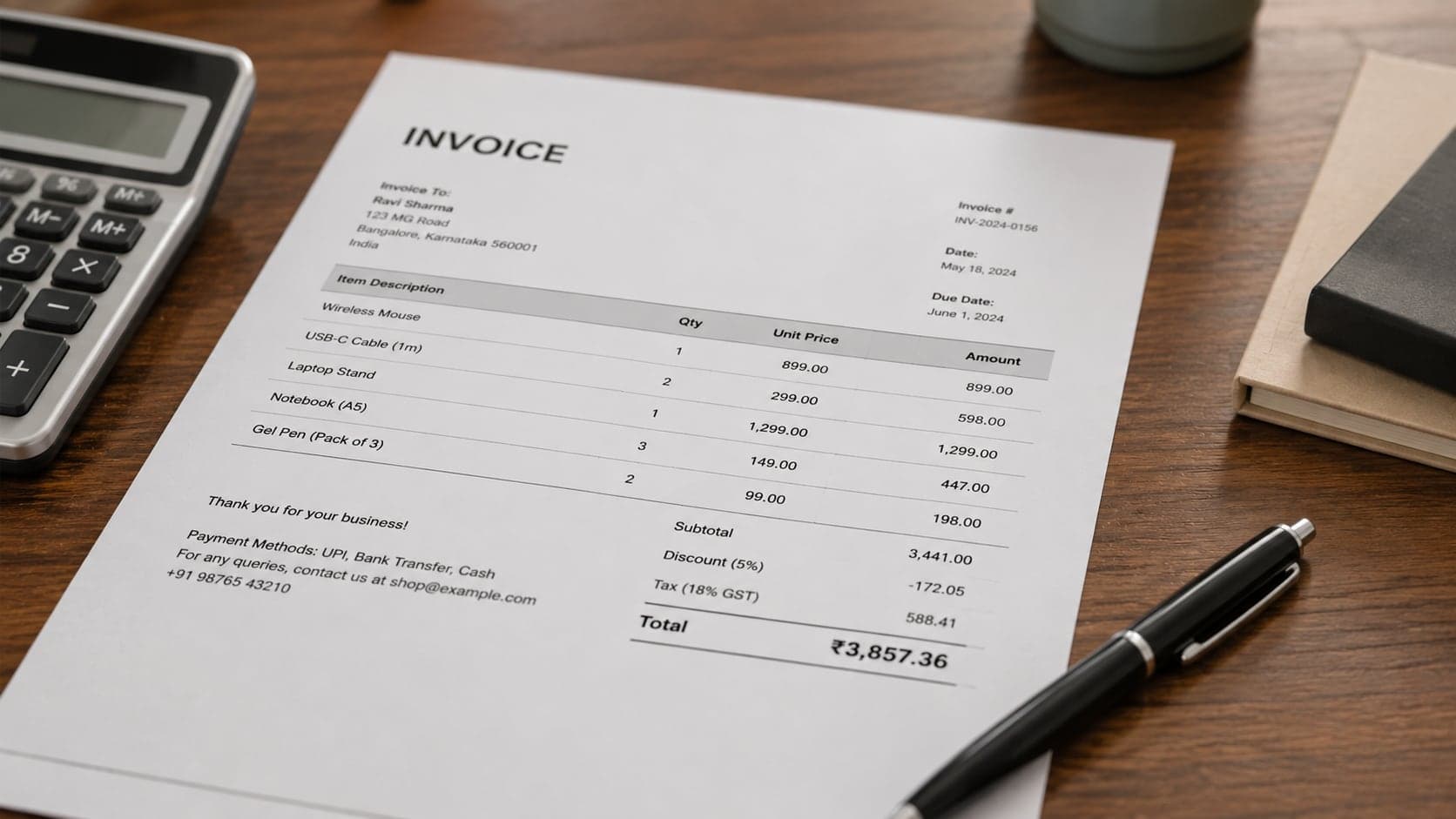
The working rule: light volume and short bills → 58 mm; everything else → 80 mm. And for business buyers who need a formal document — wholesale orders, company purchases — print an A4 or A5 invoice from an ordinary document printer instead of a long slip. Good billing software prints both formats from the same sale, which beats keeping two records.
Anatomy of a good receipt
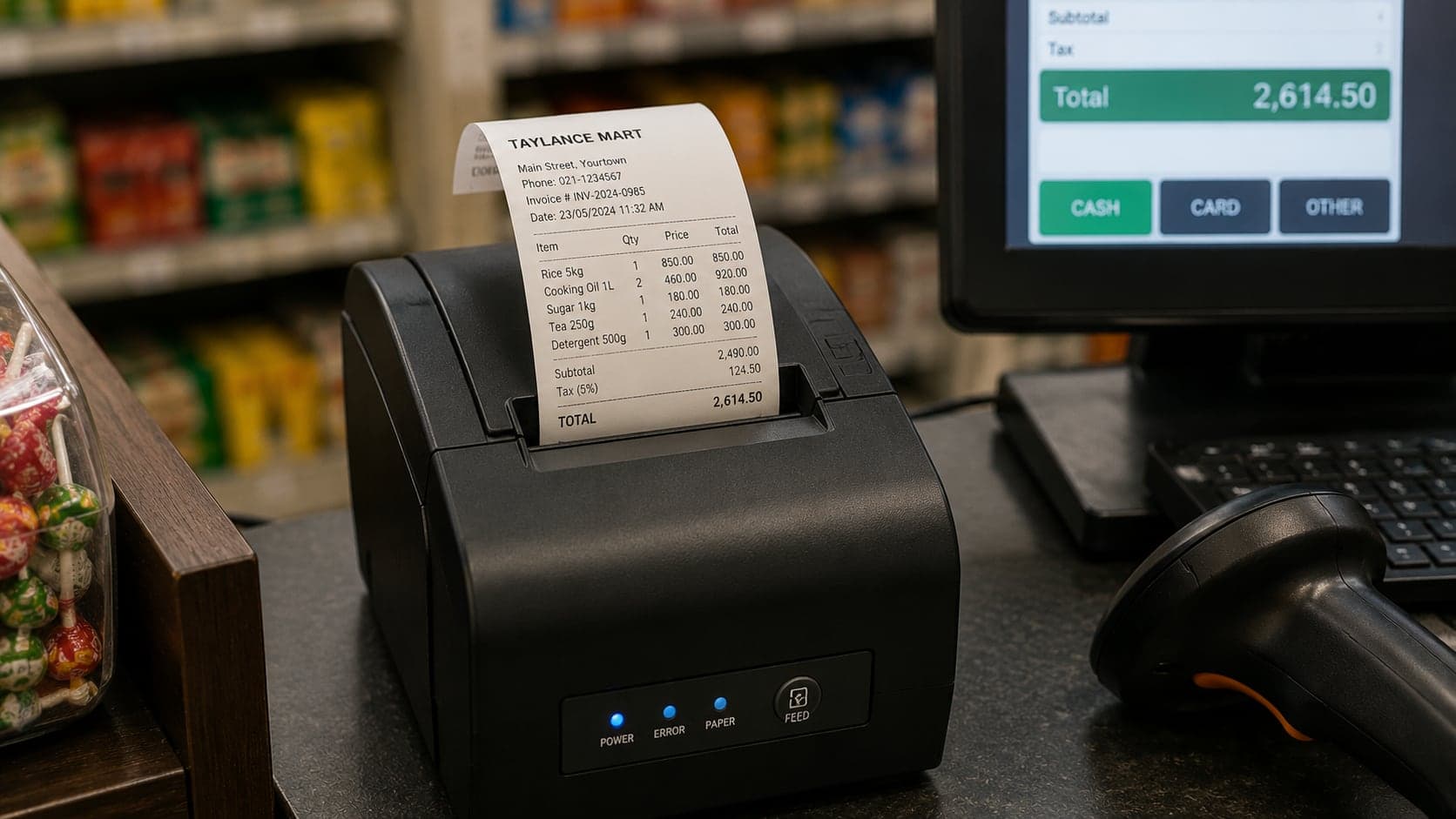
Top to bottom, a slip that does all four of its jobs carries:
- Header: shop name (logo optional), address or area, phone number, and any tax registration number local law requires.
- Transaction identity: receipt/bill number, date and time, counter or cashier identifier. This line is what makes the slip findable in your records when a customer returns with it.
- Lines: item name (abbreviated sensibly), quantity × rate, line amount. One physical line per item where width allows.
- Totals block: subtotal, discounts shown explicitly, tax where applicable, grand total in bold, amount tendered and change for cash sales — the change line prevents half of all till disputes.
- Footer:the returns policy in one line (“Exchange within 7 days with receipt”), and a thank-you. If you run promotions, one short line here costs nothing.
Resist the urge to print everything the software knows. A receipt is read in three seconds at arm's length by someone standing up; generous font size and white space beat completeness. The details live in your system — the slip only needs enough to find them.
Choosing a printer: the four specs that matter
Receipt-printer spec sheets are long, but purchase decisions come down to four lines:
- Connection.USB is the default: plug into the till computer, done. Ethernet/LAN suits printers shared by several counters or placed away from the computer. Bluetooth pairs with tablets and phones — convenient, and also the most common source of “it stopped printing” calls. Wi-Fi models exist but inherit every quirk of shop Wi-Fi. If in doubt: USB for one counter, LAN for several.
- Auto-cutter. Mid-range and better printers cut the slip themselves; budget models make you tear against a serrated edge. At more than a light trickle of customers, the cutter stops being a luxury — it is the difference between handing a receipt and wrestling one.
- ESC/POS compatibility.This is the near-universal command language of receipt printers, originating with Epson and adopted by essentially everyone. A printer that speaks ESC/POS works with almost any billing software; a proprietary-only printer marries you to one vendor. The words to look for on the box are exactly “ESC/POS compatible.”
- Duty cycle honesty. A famous-brand 80 mm printer costs several times a no-name clone. For a low-volume counter the clone is often genuinely fine; at hundreds of receipts a day, the branded head and cutter last years longer and the drivers behave. Buy the tier that matches your queue, not your optimism.
Where the printer lives: placement and cabling
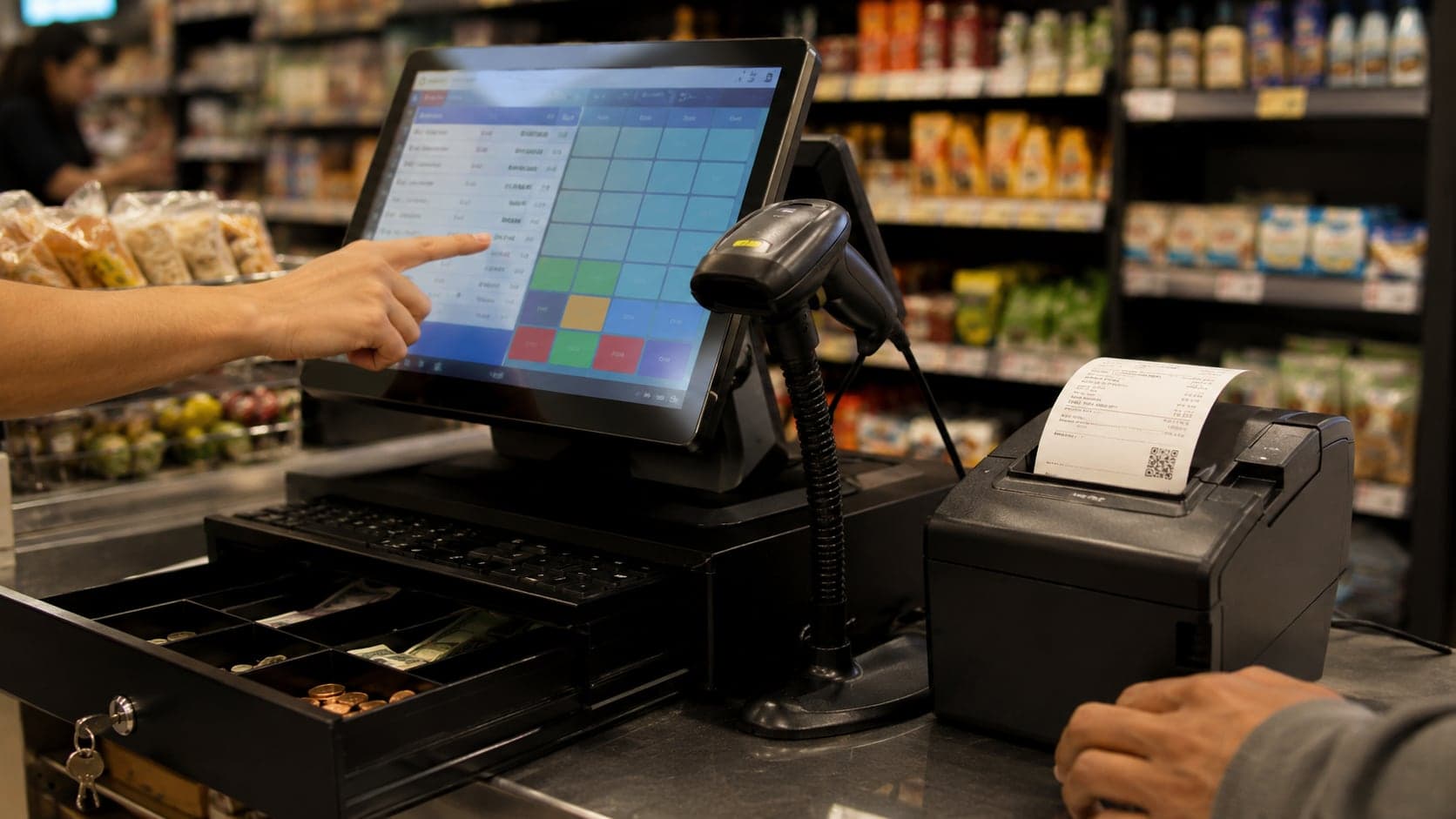
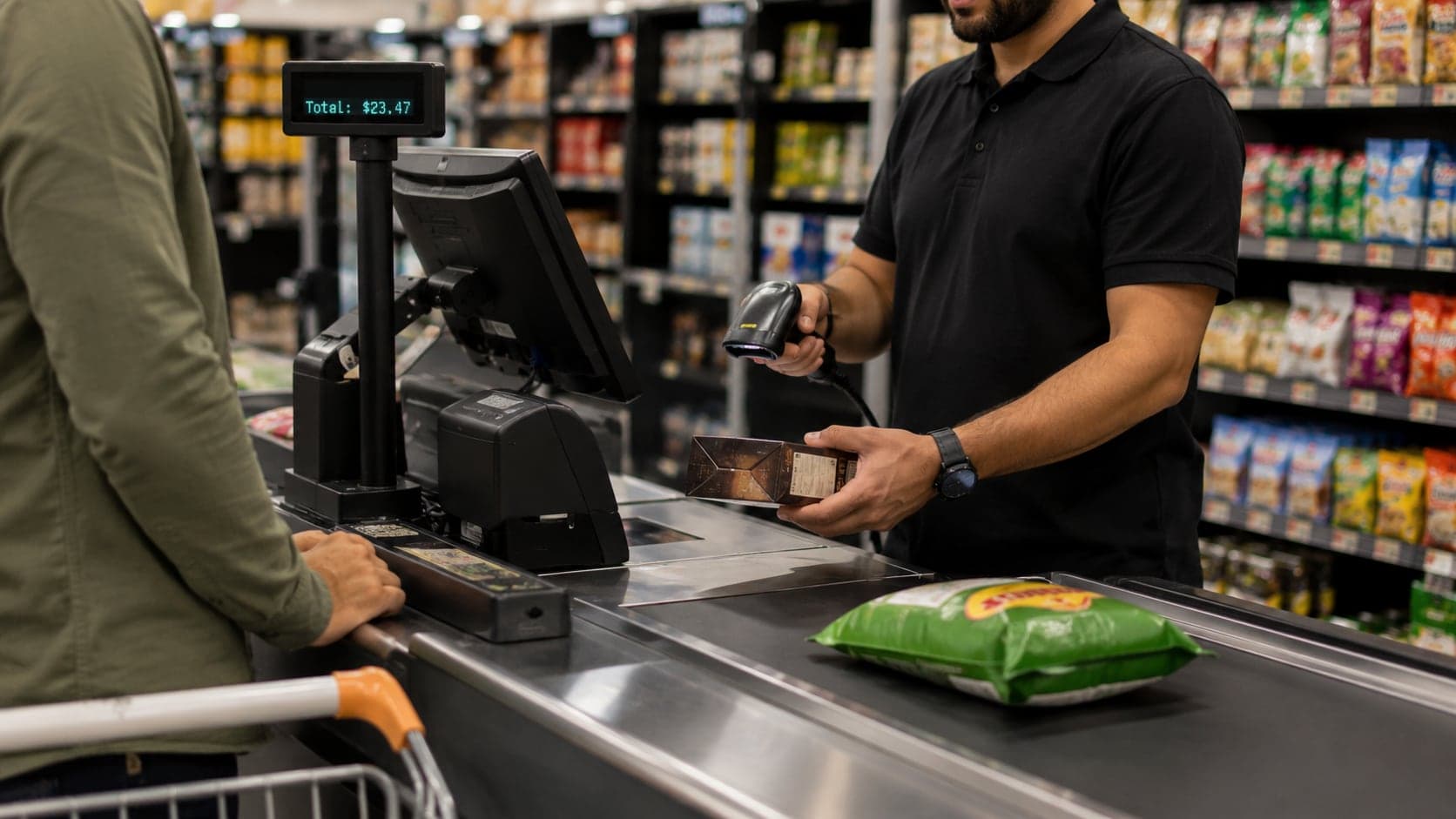
Printer placement sounds too trivial to plan, and then the counter spends years working around a bad decision. The slip must land where the cashier's idle hand already is — beside the keyboard on the tearing side, facing the customer-handover spot. A printer behind the monitor adds a reach and a turn to every single sale; at three hundred sales a day, that is a part-time job of turning around.
- Keep it off the traffic path. Paper-out and lid-open are the two daily interventions; both need clearance above the printer. Under a shelf lip means loading paper by braille.
- Respect the thermal rule: away from sunlight, heaters, and the fryer — heat greys the loaded roll from the outside in, and the first symptom is mysterious grey edges on morning receipts.
- Tame the three cables(power, data, drawer line): tied, slack-looped, and out of the drawer's slam path. Most “printer randomly dies” tickets are a power plug half-out of a crowded strip, and most “drawer stopped opening” is the RJ11 yanked by a trailing loop.
- Spare roll within arm's reach — in the drawer or a clip under the counter. The queue does not pause while someone visits the storeroom.
Connecting the printer to your software
Modern billing systems print receipts in one of two ways, and it is worth knowing which yours uses before you buy hardware:
Through the operating system's printing — the printer is installed with a driver like any office printer, and the software prints a formatted page to it. This path is universal and easy to set up; its cost is the print dialog and slight formatting fragility (margins and scaling settings can shrink or clip slips). Web-based systems commonly work this way, and well-designed ones supply a print stylesheet so the browser dialog produces a correct slip on both 58 and 80 mm paper.
Directly in ESC/POS— the software sends raw printer commands over USB or the network, skipping dialogs entirely: sale completes, slip appears, drawer pops (the printer usually has a socket that fires the cash-drawer solenoid). This is the smoothest counter experience; the trade-off is a small setup step (a local print utility or the printer's network address) that someone must configure once per till.
Whichever path you use, do the ten-minute setup test before the first real customer: print a slip with your longest product name, a discount, tax lines, and change due; check the width setting matches the paper; confirm the cutter fires; and print a second copy from the sale history — because reprints are a daily need the moment a customer says “I lost it.”
One printer or several: common setups
Most shops start and happily end with one thermal printer at one till. But three multi-printer patterns come up often enough to plan for:
Receipt printer + document printer. The commonest pair: thermal for the counter slip, an ordinary A4 inkjet or laser in the back office for formal invoices, statements, and reports. The billing software should route by document type automatically — slips to thermal, invoices to A4 — without the cashier choosing from a dialog each time. If a candidate system cannot route per-document, every wholesale invoice will involve a small ceremony of menu-picking, forever.
Two tills, two printers.Each counter gets its own printer — sharing one between two live tills saves less than it costs in collisions and walking. The subtlety is configuration: each till's software must default to its ownprinter, or Counter 1's receipts start emerging at Counter 2 the first time someone “fixes” a setting.
The kitchen or warehouse copy. Food counters and dispatch-heavy wholesalers often want the order to print a second time somewhere else — the kitchen, the packing bench. That is a LAN printer at the far end and software that supports printing one sale to two destinations. Impact printers still earn their keep in hot kitchens, where a stove-side thermal roll can darken on its own.
Paper: buying it, storing it, and what it costs
Thermal rolls are specified as width × diameter — 80 mm × 80 mm is the common grocery roll, giving roughly 60 to 70 metres of paper. At a typical 20 to 25 cm receipt, that is around 250 to 300 receipts per roll. With rolls bought by the box at ordinary prices, the paper cost per receipt lands around one to two cents — trivial per sale, a knowable line per year. A counter printing 200 receipts a day uses roughly 250 rolls a year; budget accordingly and buy by the carton, not the piece.
Three storage habits prevent the classic paper problems:
- Keep rolls cool, dry, and dark. Heat is what develops thermal paper — a carton stored against a sunny wall or above the fryer arrives pre-greyed.
- Buy decent-grade paper. The cheapest rolls print faint, fade in weeks, and shed coating dust that slowly clogs the print head.
- Load with the coated side toward the head — rolls only work one way around. The scratch test tells you the side: a fingernail dragged across the coated face leaves a grey mark. Blank output after a paper change is this, almost every time.
One legal-ish footnote worth knowing: because thermal print fades, some jurisdictions and many accountants expect longer-lived copies of significant documents. The practical answer is digital — your billing system's stored record is the durable original, and the slip is a convenience copy. That is one more quiet argument for software-backed billing over a paper-only trail.
Troubleshooting: the six problems every counter meets
The printer prints, but the paper comes out blank.
Likely cause: The roll is loaded backwards — the thermal coating faces away from the print head.
Fix: Open the lid, flip the roll so paper feeds from underneath toward the front, close, and test. Confirm with the fingernail scratch test if unsure which side is coated.
Print is faint or patchy across the slip.
Likely cause: Low-grade or old paper, a dusty print head, or head wear on an aging printer.
Fix: Try a fresh roll from a better batch first. If faintness persists, clean the head gently with isopropyl alcohol on a lint-free cloth (printer off, head cool). Streaks in fixed vertical positions on every slip suggest head damage — repair or replace.
Text is cut off at the right edge, or the slip prints tiny.
Likely cause: Software page size does not match the paper width — an 80 mm layout on 58 mm paper, or a driver set to A4 scaling a page down.
Fix:Set the paper width in both the billing software's print settings and the printer driver to the actual roll width, and disable any “fit to page” scaling.
Every sale prints two slips, or none.
Likely cause:Duplicate printer entries in the operating system (USB re-plugging creates “Printer (Copy 1)”), with software and driver each configured differently.
Fix: Remove all copies of the printer from the OS printer list, plug in once, let it install once, and point the billing software at that single entry.
A Bluetooth printer keeps disconnecting from the tablet.
Likely cause:Power saving putting the printer or the tablet's Bluetooth to sleep between sales.
Fix:Disable the printer's sleep mode if it has one, exclude the billing app from battery optimisation, and keep the printer within a few metres of the till. If the counter is fixed, a USB or LAN printer ends this class of problem permanently.
The cash drawer no longer pops open with the sale.
Likely cause:The drawer's RJ11 cable runs through the printer, so a loose cable, changed printer, or disabled “drawer kick” setting breaks the chain.
Fix:Reseat the cable in the printer's drawer socket, confirm the drawer-kick option is enabled in the software's print settings, and test with a manual open command. If the drawer opens manually but not on sales, the software setting is the culprit.
Digital receipts, briefly
Emailed and messaged receipts are growing, and for online orders they are the natural form. At a physical counter they complement paper rather than replace it: collecting a contact takes longer than the print does, and a queue is a bad place for it. The sensible posture for a small shop is paper by default, digital on request, and a billing system that stores every sale either way — the stored record, not the slip, is the one that matters at month-end. Waste-conscious shops can shorten the footer and skip the duplicate copy; the roll lasts longer and the bin fills slower.
The buying checklist, in one place
Everything above, compressed into the list to carry to the computer market or paste beside the browser tab:
- Width: 80 mm unless the counter is genuinely light-volume with short bills — then 58 mm.
- Language:the words “ESC/POS compatible” on the box or spec sheet. No exceptions.
- Connection: USB for a single fixed till; LAN if shared or distant; Bluetooth only for genuinely mobile selling.
- Cutter: auto-cutter for anything beyond a trickle of customers.
- Drawer port: the RJ11 socket if a cash drawer is now or ever in the plan.
- Speed: 200 mm/second or better keeps a queue honest; slower is fine for low volume.
- Duty tier: branded head and cutter for hundreds of daily receipts; a reputable budget model for dozens.
- Driver reality: confirm drivers exist for your operating system version — five minutes of checking that saves the classic evening of forum-reading.
- Paper deal: price a carton of decent-grade rolls in the same purchase; per-roll shop prices are the most expensive way to buy the only consumable.
- Warranty that names the head — the print head is the component that wears, and the one worth having covered in writing.
FAQ
Frequently Asked Questions
Quick answers to common questions about this topic.
Can I use an ordinary inkjet or laser printer for receipts?
Technically yes, and for occasional formal invoices it is the right tool. As the every-sale printer it fails on economics and patience: per-page ink or toner cost dwarfs thermal paper, first-page-out takes many seconds, and cut sheets are the wrong shape for a two-item sale. Thermal for the counter, document printer for documents.
Do I legally have to give every customer a receipt?
It depends on your country and your registration status — some tax systems mandate issuing receipts, others only mandate keeping your own records. Two safe universals: offer one always, and keep your own copy of every sale always. Confirm the specifics with a local accountant.
My receipts fade before the return window ends. Problem?
Only if the slip is your only record. Print the bill number prominently and keep the sale in your system; a faded slip with a readable number — or even the customer's name and date — lets you reprint from history. Better paper also fades slower; the cheapest rolls are the ones that go grey in a glovebox in a month.
Can receipts print in languages other than English?
Yes, with one check. Older printers render text from built-in character sets (code pages), which cover major scripts unevenly; the reliable modern route is software that prints the slip as an image or supports the printer's Unicode mode, so Urdu, Arabic, Chinese, or mixed-language slips come out exactly as designed. If multilingual receipts matter to your counter, test your exact language on the exact printer model before buying — it is a two-minute test that spec sheets will not do for you.
How do I stop fake or reused receipts in returns?
Lean on the bill number: a return is accepted by looking the number up in your sales history and marking the items returned against it, so the same slip cannot return the same item twice. Shops with higher stakes print a QR code of the bill number for instant lookup. The principle is the same either way — trust your records, not the paper.
Is a receipt the same thing as an invoice?
No — an invoice requests payment; a receipt proves it happened. A cash-sale till slip effectively plays both roles at once, which is why the words blur in retail. The distinction starts mattering with credit sales and business customers, and that is invoice territory.