
 Tillqorin by Taylance Tech
What is a POS system — and why does your shop need one?
Point of sale software for retail and wholesale counters — what it is, why shops use it, and how Tillqorin handles the sale at pos.taylancetech.com.
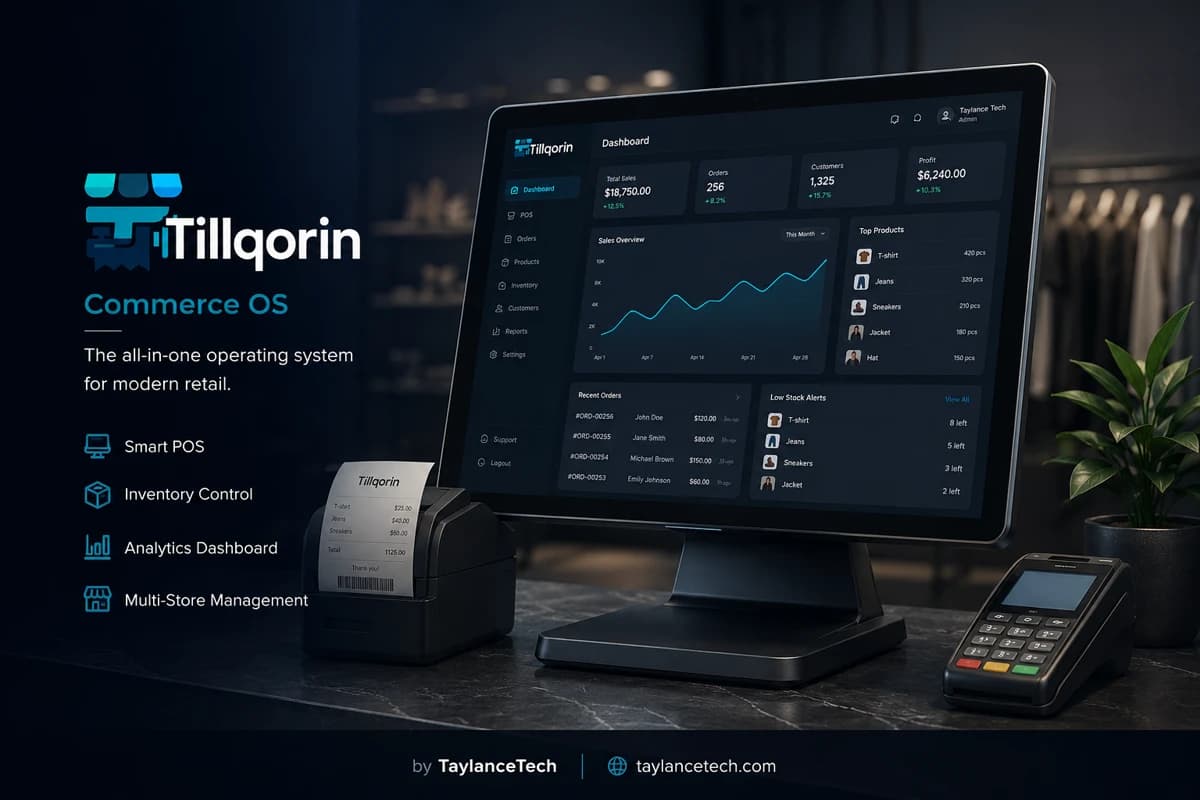
A POS system is point of sale software: the tool your staff use at the counter to complete a sale. They find each item, set the quantity and price, take payment or record credit, and give the customer a receipt. That moment is the point of sale. The system is what records it accurately and consistently.
Most shops manage without dedicated POS software at first. Handwritten bills, calculators, and Excel sheets can work while volume stays low. Problems appear when the queue grows, prices change often, more than one person sells, or customers buy on credit. Wrong totals, slow checkout, and missing sale records become part of the day.
Tillqorin is the POS system built by Taylance Tech for retail and wholesale counters. It runs in the browser at pos.taylancetech.com. Staff complete sales with scan or search, hold unfinished bills, print thermal receipts or larger invoices, and keep each sale in history — with staff logins that separate cashier work from owner controls.
What is a POS system
What is a POS system?
POS means point of sale. Here is what that means in a real shop.
POS stands for point of sale. The point of sale is the place and moment where a customer pays for goods or takes them on credit. In a shop, that is usually the counter. A POS system is the software (and sometimes the hardware around it) that records that moment.
Think of a normal sale. A buyer puts three items on the counter. Someone must find each item in the shop’s price list, multiply quantity by rate, add the total, take money or write a due, and give proof. If that whole chain lives in memory and paper, you still have a point of sale — you just do not have a POS system helping you.
People mix up POS with many other tools. A cash drawer holds notes. It is not a POS system by itself. A calculator adds numbers. It is not a POS system. A GST invoice template in Word can print a bill, but it does not run your counter as a system. Accounting software may store ledgers later. That is not the same as helping a cashier finish a sale while someone is waiting.
A real POS system is built around the sale. You pick products. You set quantities. You apply the price the shop uses. You record how payment happens — cash now, split pay, or credit for a known buyer. You give the customer proof: a thermal receipt or a printed invoice. Then the sale becomes a record you can find again.
Some POS tools are installed only on one desktop PC. Some open in a browser on the internet. Tillqorin is the second kind: a web POS you open at pos.taylancetech.com. The idea of POS does not change with that. The sale is still the center. Only where the software lives changes.
You will also hear “POS software,” “point of sale software,” and “POS billing.” In everyday shop talk they usually mean the same job: run the till and finish the sale correctly while the customer is waiting.
If you only remember one line, remember this: a POS system is the tool that turns “customer wants these items” into a finished, recorded sale without forcing you to rebuild the math on paper every time.
- Point of sale = the moment of the sale at the counter
- POS system = software that records that moment properly
- Not the same as a cash drawer, calculator, or Word bill alone
- Tillqorin is a web POS focused on that counter sale
Why you need it
Why shops need a POS system
When paper and Excel start costing you time, money, or calm at the counter.
You need a POS system when sales volume rises. Ten handwritten bills a day can work. Eighty bills a day with wrong totals and lost slips will eat your evening. Speed at the counter is not luxury. It is how you keep the queue calm.
You need a POS when more than one person sells. If only the owner knows the prices, the shop stops when the owner steps out. A POS holds product rates so a cashier can sell without calling across the room for every item.
You need a POS when customers ask for proof. Many buyers want a printed slip. Some business buyers want a clearer invoice page. Doing that from the same sale avoids two different totals for one purchase.
You need a POS when credit is part of your trade. Local shops often sell on dues to known buyers. If those dues live only in chat messages and memory, disputes start. A POS should let you place the sale on a customer account so the amount due remains visible after the customer leaves.
You need a POS when you are tired of rebuilding the day at night. Retyping bills into Excel is unpaid work. A POS keeps the sales as you go, so closing is checking, not rewriting.
You need a POS when a single dead PC would scare you. If every bill exists only on one desktop file, one crash can wipe months of history. A browser-based POS you can open on another computer or tablet reduces that risk. The practical rule is simple: do not trap the till on one fragile machine.
You may not need a heavy POS on day one of a tiny stall with five items and one seller. You may still want one as soon as prices grow and lines form. The question is not “are we a big company?” The question is “are our sales already messy?”
Here is a simple test. Pick last Saturday. Can you list every sale in order with totals in under five minutes? If yes, your current method may still be fine. If no, you need a POS system — or you need better habits plus a POS, because paper will not catch up by itself.
- More sales than paper can handle cleanly
- More than one person at the till
- Customers who want printed proof
- Credit sales that must not get lost
- No more nightly retyping of every bill
POS vs other tools
How a POS is different from other shop tools
POS is not the same as a cash drawer, a Word invoice, or full accounting software.
A POS is for the live sale. Inventory software is for quantities on the shelf over time. Billing software is often about making invoices and paperwork. Accounts tools are about balances and books. Many products mix these jobs. That mix can be good. You should still know which job you are buying first.
If the main pain is a slow queue and messy bills, begin with POS. Inventory accuracy and formal invoice paperwork matter too, and many shops eventually need all three. Tillqorin includes modules beyond the till, but the foundation is still a clean counter sale. Learn that job first, then expand.
Owners get hurt when they buy a big suite, ignore the till screen, and keep selling on paper. Then they say “POS failed.” What failed was launch focus. Learn the sale screen. Use it for every bill. Then expand.
Without a POS
What goes wrong without a POS system
Common counter problems shops face when every sale still lives on paper.
Wrong price under pressure. The cashier remembers last week’s rate. The owner had changed it. The customer pays less than they should, or gets angry when you correct it late. A POS shows the rate saved on the product.
Lost mid-sale. Someone is halfway through a bill, then runs to the door for a call. On paper the half bill disappears under other papers. On a POS you hold it and return.
Two papers, one sale. You wrote a bill, then typed another version in Word for “official” use, and the totals differ. The customer trusts neither. One sale in the POS, one print path, one total.
Saturday night arguments about dues. “You had 3,000 pending.” “No, I paid Tuesday.” Nobody has the sale list. A POS will not end every argument, but it gives a list of sales instead of vibes.
A new helper freezes. They do not know prices. They write wrong names. Training a person on a clear sales screen is faster than training them on your handwriting and your memory.
Month-end surprise. Sales “felt good” but cash is short because credit and mistakes never landed in one place. The POS is not magic, but it stops you from flying blind on till activity.
What POS must do
What a POS system must do at the counter
The basic jobs a POS must do while a customer is waiting.
It must find products quickly. Search or barcode. If finding an item takes longer than the customer’s patience, the tool fails the first test.
It must set quantity and price clearly. The cashier should see what will be charged before payment. Quiet mistakes here become loud fights later.
It must record payment or credit. Cash now is one case. Split pay happens. Credit for a known buyer happens. If the POS only understands perfect cash sales, many shops will keep a side notebook again.
It must print proof. Thermal for the queue. Larger paper when needed. Printing should come from the sale you just made, not from a second program.
It must keep the sale as a record. You should be able to find today’s sales without digging through carbon copies. History is part of the POS job.
It should support more than one user safely. Owner and cashier are different jobs. A POS that forces one shared login is weak for any shop with staff.
Extra modules can help later — stock control, purchasing, and reports. Those matter for a growing shop. They are not the definition of POS. The definition is the counter sale done right. Tillqorin includes additional modules around that sale once the till habit is stable.
- Find product fast
- Set qty and price in the open
- Record cash, split pay, or credit
- Print proof from the same sale
- Keep sales history
- Allow separate staff logins
Tillqorin sale
How a sale works in the Tillqorin POS
Scan or search, hold a bill, take payment or credit, print, and keep the sale in history.
Open the sales screen. Add the first item by barcode scan or by search. Add the next items. Change quantity if the customer wants more than one. Change the rate only when you mean to. Fast wrong rates are how margin disappears.
If the customer steps away, hold the bill. Help someone else if you need to. Open the held bill when they return. You should not rebuild a long bill from memory in a rush.
Choose how they pay. Cash is common. Some people split payment. Some use installments. Some buy on credit on their account. Finish the sale so the record matches what really happened at the counter.
Post the sale and print. Use thermal for a normal walk-in slip. Use a larger layout when a buyer wants a fuller invoice page. Do not retype the same sale into Word. That is how two totals appear for one purchase.
After your first test sale, open the sales history and confirm the bill is there. That check builds trust in the POS. If the sale is missing or wrong, fix your steps on trial before you put the whole shop on it.
You will notice other menus around the sales screen — products, purchases, expenses, reports. Use them when you are ready. On day one, success means a clean sale and a clean print. That is the POS core.
Hardware
Hardware for a POS counter
A normal computer, a barcode scanner, and a thermal printer are enough to start.
You need a computer or tablet that runs a modern browser and lasts through the shift. A normal desktop is fine. A laptop is fine. A spare device is smart. If the main PC fails, another browser login keeps the till alive when you use a web POS like Tillqorin.
A USB barcode scanner that types like a keyboard is enough for most shops. Put barcodes on products in the software so the scan finds the right item. You do not need a rare scanner locked to one brand.
A thermal printer on 58mm or 80mm paper covers most receipt needs. Set the width in Tillqorin and print a test slip before go-live. Check that your shop name looks right.
Keep a normal office printer if some buyers want A4 or A5 invoices. Print those from the same sale when needed.
You need internet while you use Tillqorin, because it is online. Use a line you trust in shop hours. Keep a mobile hotspot if outages are common. If your shop has no internet for days at a time, ask Taylance Tech before you depend on any online POS.
A small UPS for the counter PC and router helps during short power cuts. That is shop sense, not a software feature.
- Browser-ready PC, laptop, or tablet
- USB barcode scanner
- Thermal printer (58mm or 80mm)
- Optional office printer for larger invoices
- Internet plus backup hotspot if needed
How to choose
How to choose a POS system
A short list of tests to run before you trust any POS with your Saturday rush.
Write five must-haves on paper before you watch any demo: fast item find, clear prices, hold bill, print receipt, staff login. If a tool fails two of those, leave early.
Test with your mess. Bring product names that sound alike. Make a credit sale. Hold a bill halfway. Reprint. Clean sample data hides pain. Your Saturday data shows it.
Ask what “saving the sale” means. Do you get a real sales record you can find later? Or only a PDF that never becomes history? A POS without history is a printer with extra steps.
Ask about staff. Can a cashier sell without opening owner settings? If not, you will regret it when you hire help.
Ask about internet and devices. For Tillqorin, plan for online use and keep a backup connection if outages are common. Be honest about your shop’s connectivity before you promise that the till will always be available online.
Ask who builds it. Tillqorin is built and run by Taylance Tech (taylancetech.com / pos.taylancetech.com). If you need changes, you can talk to the studio that owns the product.
Start narrow. A POS that does the counter well beats a giant suite your team never learns. You can grow into more modules after the till habit is solid.
Myths
Common myths about POS systems
Wrong ideas about POS that stop shops from fixing the till.
Myth: “POS is only for big supermarkets.” Truth: small shops with busy counters and messy dues need it as much as big stores. Size is not the test. Mess is the test.
Myth: “A bill book is enough forever.” Truth: bill books fail when staff grow, credit grows, or you need to find last Tuesday’s sale in ten seconds.
Myth: “Any software that prints a bill is a POS.” Truth: printing is one step. Finding items fast, keeping sale history, and supporting staff logins are part of the POS job too.
Myth: “We will enter everything at night.” Truth: night entry is where mistakes hide. A POS earns its keep when sales are posted as they happen.
Myth: “We need every feature on day one.” Truth: you need a clean sale first. Extra menus can wait. Shops drown when they try to learn everything before the first real bill.
Myth: “The most expensive POS is the best.” Truth: the best POS is the one your cashier still uses when they are tired at 8 p.m. Simple beats crowded.
Mistakes
Mistakes when starting a POS at the counter
Setup mistakes that make staff quit the POS and go back to paper.
Leaving your top products out of the system. Cashiers then fall back to paper for “the other items.” Enter the daily sellers first.
Skipping barcodes on fast movers, then saying the POS is slow. Scan speed is mostly label work you do once.
Sharing the owner login with every helper. Make cashier logins even if it feels like extra setup.
Running paper and POS together for months with no end date. Pick a go-live day. After that, the POS is the sale record.
Ignoring the trial end date, then panicking when new sales cannot post. Open Billing once during trial so you know where it is.
Judging the POS after one messy hour with no training. Give staff a short practice with ten sample sales before the rush.
First month
How to get value from a POS in the first month
What a calm first month on a POS should look like.
Week one: only care about clean sales and clean prints. If every cashier can finish a bill without calling the owner for prices, you already won something.
Week two: stop rewriting sales into Excel “just in case.” If you keep Excel, use it as a read-only backup for a short time, then drop the double work. Double entry makes both systems wrong.
Week three: use sales history when a customer argues about a bill. Pull the sale. That is a POS paying for itself in one awkward conversation.
Week four: notice which items appear most in your sales history. Even a simple view of what you sell all day helps you buy better and staff the counter with more confidence.
Keep notes of friction. Slow search names. Missing barcodes. Printer margins. Fix those small things. Tiny friction makes staff hate the POS. Tiny fixes make them trust it.
If something about the sales screen blocks your shop, tell Taylance Tech with a real example bill. A concrete example is useful. “Not good” is not.
The problem
What goes wrong at the counter without a POS
If two or three of these sound familiar, you already know why people look for a POS system.
Slow sales when prices live in someone’s head
If finding a rate means asking the owner or opening a notebook, the queue grows. A POS keeps rates on the product so the cashier does not guess.
Bills that do not match what was sold
When you sell on paper and fix records later, later often never comes. A POS should leave a clear sale record right when the customer pays or takes credit.
No clear proof for the customer
Handwritten totals get disputed. A printed receipt or invoice from the sale gives both sides the same numbers.
Half-finished bills get lost
A customer steps away mid-sale. On paper you scribble and hope. A POS should let you hold the bill and open it again without retyping everything.
Nobody knows who changed what
One shared computer login means you cannot tell who voided a sale or changed a price. A POS with staff logins fixes that basic problem.
End of day is rebuild work
If closing means retyping every bill into a sheet, the till work is not finished. The POS should already hold the day’s sales when you shut the shop.
Tillqorin
What the Tillqorin POS does at the till
Counter-focused features in the live app. Other modules exist, but this list stays on the sale.
Counter sales screen
Scan or search products, set qty and rate, hold a bill, take cash or credit, and print from the same sale.
Sale that stays in history
Posted sales are real records, not scraps you throw away. You can review what was sold instead of rebuilding the day from memory.
Receipts at the till
Thermal slips for walk-in customers. Larger print when someone needs a clearer invoice paper — still from the same sale.
Staff logins for the till
Cashiers sell with their own login. Owners keep admin control. The counter stays usable without handing everyone full power.
Trial you can test with real bills
Sign up, verify email, and try the sales flow before you subscribe. Learn the screen with your own products, not only demo data.
Who it’s for
Who Tillqorin POS is for
Built for shop owners and counter staff who need a clear sales screen and reliable sale records.
- Shop owners still billing on paper or Excel and losing time at the counter
- Cashiers who need a clear sales screen, not an accounting maze
- Owners hiring help and needing separate till logins
- Shops that already have a scanner and thermal printer and need software that uses them
- Owners comparing point of sale software before replacing paper or Excel at the till
Getting started
How to start with the Tillqorin POS
Add products, print a test bill, and learn the sales screen before you open every menu.
- 1
Create your shop on Tillqorin
Go to pos.taylancetech.com, sign up, and verify your email. Your shop becomes an organization with a trial.
- 2
Add the products you sell most
Enter names, rates, and barcodes for your fast movers. You do not need the full catalog on hour one, but you need the items you sell every day.
- 3
Set print and try one sale
Set thermal size and shop name in settings. Run one sale: add items, take payment or credit, print, and confirm the sale appears in your history.
- 4
Add a cashier login if you have staff
Give helpers their own login. Do not share the owner account at the till.
- 5
Subscribe when the till flow works
Open Billing in the app before the trial ends if you want to keep posting sales without interruption.
Checklist
POS go-live checklist
Complete these steps before you move every customer onto Tillqorin.
- Confirm your till must-haves: scan or search, hold bill, print, credit, staff login
- Enter your top daily products with correct rates
- Add barcodes on those products and test one scan
- Set thermal print and shop name; print a test slip
- Run five practice sales on trial (include one held bill)
- Create a cashier login if someone else will sell
- Confirm sales appear in history after posting
- Find the Billing page once so the trial end does not surprise you
- Set a go-live date and tell staff paper is backup only for the first days
Compare
POS system vs the old till method
A straight look at counter work with Tillqorin versus paper, Excel, or a single desktop file.
| Criterion | With Tillqorin | Typical alternative |
|---|---|---|
| What POS means here | Software for the counter sale moment | A calculator, bill book, or Word file used as a till |
| During the sale | Find item, set qty, take pay or credit, print | Hunt prices and rewrite bills by hand |
| If the customer steps away | Hold the bill and resume | Start again and hope you remember the lines |
| Staff at the till | Separate logins and roles | One shared PC password |
| After many sales | Sales stay in the system to review | Nightly retyping into Excel |
| Device failure | Sign in on another browser device | History stuck on one dead PC |
FAQ
POS system — frequently asked questions
Practical answers about POS system and how Tillqorin handles it.
What is a POS system in simple words?
A POS system is software for the counter sale. You find items, set quantities and prices, take payment or credit, print a receipt or invoice, and keep the sale as a record. Tillqorin is a web POS system for that job.
Why do I need a POS system?
You need one when paper or Excel makes sales slow, prices wrong, dues messy, or nights full of retyping. A POS makes the sale moment faster and keeps history you can check later.
Is a billing app the same as a POS?
People use the words in mixed ways. Billing often means preparing invoices and paperwork. A POS is the live counter tool for completing the sale itself. Tillqorin handles counter sales and can print receipts or invoices from that same sale.
Is Tillqorin a POS system?
Yes. Tillqorin’s sales screen is built for point of sale work: scan or search, hold bills, take pay or credit, print, and keep sales history. Extra modules sit around that core.
Do I need special POS hardware?
No special branded terminal is required to start. Use a normal computer or tablet, a common USB scanner, and a thermal printer if you want. Tillqorin runs in the browser.
Does Tillqorin need internet?
Yes. It is online at pos.taylancetech.com. Use a stable connection and a hotspot backup if outages are common.
Can staff have their own POS login?
Yes. Create cashier or manager users so people do not share the owner account at the till.
Can I hold a bill if a customer steps away?
Yes. Hold the sale and open it again later so you do not retype the whole bill.
Can I try before paying?
Yes. New shops get a trial after email verification. Subscribe from Billing when you want to keep posting sales after the trial.
Who makes Tillqorin?
Taylance Tech. Website: taylancetech.com. App: pos.taylancetech.com.
Does a POS replace inventory or accounting software?
A POS focuses on completing and recording the counter sale. Many shops later add stronger stock control or bookkeeping around it. Tillqorin includes related modules, but the core POS job remains the sale at the till.
Keep exploring
Related Tillqorin guides
More pages on billing, stock, cloud setup, and small-shop use — same product, different focus.
Billing software
What billing software is, why shops need it, and how Tillqorin creates customer bills.
Read guideRetail POS
What retail POS is, why stores need it, and how Tillqorin runs walk-in checkout.
Read guideCloud POS
What cloud POS is, why shops need browser-based tills, and how Tillqorin hosts selling at pos.taylancetech.com.
Read guidePOS for small business
What POS for small business is, why small shops need it, and how Tillqorin starts simple without enterprise theater.
Read guideWant to try Tillqorin at your counter?
Start a trial on the live app at $9/month after trial, or contact Taylance Tech if your shop needs a custom setup.