
Chrome Can Now Shop, Book and Fill Forms for You. Google Says You Are Responsible If It Gets Things Wrong

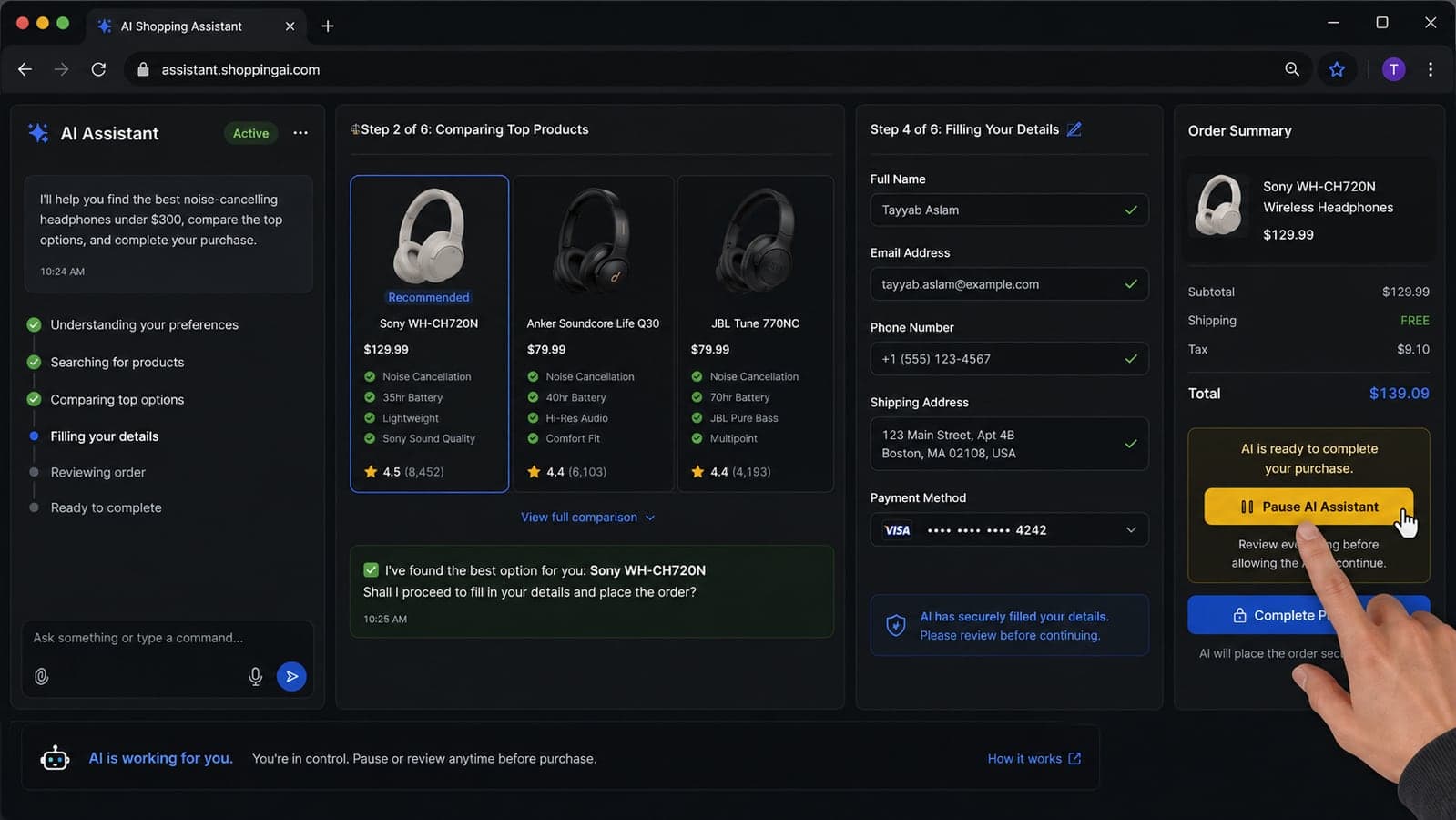
The most important sentence about Google's new browser assistant is not in the launch video. It is halfway down a help page:
You are responsible for Gemini's actions during a task, including mistakes and unexpected results such as purchases.
That sentence changes the meaning of “AI in your browser.” A chatbot can give you a bad answer. A browser agent can click the bad answer, enter your details, and move the mistake one step closer to your card.
Google expanded Gemini in Chrome to Android users across the United States on August 18. The ordinary assistant can summarize pages, answer questions, and connect with apps such as Calendar and Keep. People paying for Google AI Pro or Ultra also get the more consequential feature: Auto Browse, which can navigate websites and complete a chain of actions instead of merely explaining what to do.
The desktop preview on Windows, macOS and Chromebook Plus goes further. Google says Auto Browse can compare products, hunt for discounts, add items to a cart, organize travel, make reservations, schedule appointments, draft communications and retrieve receipts. With permission, it can ask Google Password Manager to sign in to a website. It works across tabs and can act inside sites where the browser is already logged in.
This is genuinely useful. It is also the first Chrome feature that deserves a short risk assessment before casual use. Not because it is secretly malicious, and not because every automated task will go wrong. The reason is much less dramatic: convenience has acquired hands.
What Auto Browse actually does
You describe an outcome—find a hotel near a venue within a budget, reorder a household item, compare several products, move an appointment—and Gemini creates a plan. You review that plan and click Start Task. The browser then opens pages, scrolls, clicks, and fills fields while you watch.
You can stop it or take control at any point. Google designed the system to pause for confirmation around actions such as sending communications, submitting forms, changing data, and scheduling events. It may hand the task back to you for a financial transaction, account creation, terms of service, a CAPTCHA, or another sensitive step.
Those pauses matter, but they are safeguards rather than guarantees. Google's documentation says so plainly. Auto Browse can misunderstand an instruction, click the wrong element, add the wrong quantity, claim a job is finished when it is not, or complete an unintended purchase. The feature is still described as experimental.
The sensible way to think about it is not “Can Gemini do this?” It is “How expensive would a mistake be, and how easily could I reverse it?”
The part most demonstrations skip: it browses as you
Auto Browse is useful because it does not enter the web as a stranger. In a local Chrome session, it can reach the same websites you can reach, including accounts where you are already signed in. It can draw on information from connected apps, previous chats, preferences, location, and the pages open in your browser. When a task requires it, the agent may share relevant details—such as your name, contact information, preferences, or files—with the third-party website completing the task.
Google Password Manager does not reveal the password itself to Gemini. However, after you grant permission for a particular site, Password Manager can help the agent sign in there. You can revoke those permissions later.
There is another default worth knowing. The regular Gemini-in-Chrome panel uses the current tab as context, and users can share up to ten open tabs. Starting a fresh Gemini chat shares the current tab by default unless that setting is disabled. A glowing underline shows when a tab is being used, but it is easy to stop noticing a small visual cue during a busy day.
None of this is evidence of improper data collection. It is the capability the user requested. But “the agent can finish this task” and “the agent can see enough to finish this task” are the same sentence. Permission is the product.
A webpage can contain instructions meant for the agent, not you
The new risk has an awkward name: indirect prompt injection.
Imagine asking Auto Browse to compare three products. One page contains text—possibly hidden from ordinary view—that tells an AI system to disregard the shopper's request and perform a different action. A person sees a product page. The agent may see a product page plus a new set of instructions and has to decide which words deserve trust.
Google's own help page gives more serious examples: malicious content could attempt to persuade an agent to move private information from email or documents to a public site, forward messages to an external service, or expose information inferred from connected apps.
Chrome uses several layers of defence, including classifiers for suspicious instructions, restrictions on unrelated sites and actions, confirmation prompts, and a separate check intended to compare an action with the user's actual request. These controls make attacks harder. Google nevertheless says they do not guarantee protection against every risk and that monitoring remains the user's responsibility.
This is why the confirmation screen cannot become the new cookie banner—something everyone approves without reading. The pause is the safety feature.
Use a green, amber, and red list
You do not need to reject browser automation. Give it work that matches its current maturity.
Green: delegate freely, then glance at the result
- Collecting public prices and specifications
- Finding restaurants, parking or event options
- Building a shortlist of hotels without booking
- Comparing opening hours, policies or public information
- Adding ordinary products to a cart without checking out
- Preparing a draft itinerary or calendar plan
If one of these goes wrong, the damage is usually a bad shortlist or a cart you can empty.
Amber: supervise every step
- Changing a reservation
- Submitting a quote request with personal details
- Using a loyalty account
- Drafting a customer or colleague message
- Filling a job application
- Preparing an order where price, quantity or date matters
These are recoverable, but only if you catch the error before the final click. Read the plan, watch the task, and take over before submission.
Red: keep these human for now
- Banking, investments and money transfers
- Health portals or medical decisions
- Legal filings and binding agreements
- Payroll, tax submissions and business-admin accounts
- Your primary email account
- Deleting data, closing accounts or changing security settings
- Purchases you cannot cancel without a financial loss
Chrome may ask for confirmation on sensitive actions. That does not turn a high-consequence task into a good experiment. The agent saves minutes; a mistaken transfer, deleted account, or confidential disclosure costs days.
The five-minute permission audit
Before trying Auto Browse, open Chrome → Settings → AI innovations → Gemini in Chrome.
- Turn off “Share current tab by default” if you prefer to choose context deliberately. You can still add a tab when it is relevant.
- Leave precise location off unless the task genuinely needs it. Approximate location derived from the internet connection is enough for many searches.
- Use “Let Gemini browse for you” as a permission, not wallpaper. If you finish testing Auto Browse and do not expect to use it regularly, turn the permission off.
- Review Connected Apps. Calendar access may help with scheduling; email or file access may be unnecessary for product comparison. Connect the smallest useful set.
- Audit sign-in permissions. Open Google Password Manager → Settings → Gemini can sign in for you and remove any website that no longer needs delegated sign-in.
For early testing, a separate Chrome profile is a sensible extra boundary. Keep banking, primary email, health records, and business administration in the normal profile; use the test profile for low-risk browsing. It is not an official requirement, and it does not eliminate every risk, but it reduces the number of valuable open doors around an experimental agent.
Give the task a written boundary
“Find me a good laptop” leaves several decisions unstated. A safer request sounds more like this:
Compare 16 GB laptops from these three retailers, under $900, with a manufacturer warranty. Create a shortlist with final prices and return policies. Do not sign in, submit a form, add anything to a cart, contact a seller or make a purchase. Stop after presenting the comparison.
The boundary will not replace Chrome's safeguards, but it gives both the agent and the person watching it a clear finish line. For an amber task, add the approval point explicitly: “Prepare the form, then stop before submission.”
This is the same operating principle we recommend for business automation: an agent drafts; a person approves anything customer-facing, expensive, or hard to reverse. Our earlier small-business AI agent guide arrived at that rule through production experience, and Chrome has now put the same workflow in front of ordinary consumers.
What small businesses should notice
Auto Browse is not merely a productivity feature. It is a preview of a customer that reaches your website without behaving like a customer.
An agent may compare delivery terms, stock status, warranty language, and total price without admiring the hero image or reading a clever slogan. If those facts are trapped in an image, hidden behind a pop-up, or contradicted across pages, the agent may skip the business or represent it incorrectly. Clear product data, honest pricing, accessible forms, and stable page structure become sales infrastructure.
There is also an internal-policy question. Staff should not connect a personal Chrome profile to company email, files, and administrative systems merely to save time on errands. Managed Google accounts have separate enterprise protections and administrator controls; Google says prompts and tab context in eligible managed use are not used to train its public models. The distinction between a personal Gmail profile and a managed company profile matters.
And then there is price. Auto Browse currently requires Google AI Pro or Ultra. Google's desktop documentation lists up to 20 multi-step requests per day for Pro and 200 for Ultra. If a team starts depending on browser agents, those limits and subscriptions become another line in the software budget—the broader shift we examined in our guide to agentic AI and rising SaaS bills.
Can you use it today?
As of August 23, Auto Browse is rolling out in preview to Google AI Pro and Ultra subscribers in the United States. On desktop, Google lists Windows, macOS, and Chromebook Plus, a personal Google Account, English device language, current Chrome, and Standard or Enhanced Safe Browsing among the requirements. It does not work in Incognito, and the desktop help page says it is not yet available through Gemini Live or on iPhone and iPad.
Gemini in Chrome itself has broader regional availability—including Pakistan—but that does not mean Auto Browse is available there yet. On Android, Google announced Gemini in Chrome for all U.S. users on August 18, with agentic Auto Browse reserved for Pro and Ultra subscribers.
If the button is missing, it may be the rollout rather than your settings. Do not install an unofficial extension promising to “unlock” it.
The browser now needs a job description
Chrome's shift from showing pages to acting on them is bigger than another AI sidebar. It can remove the dreariest parts of comparison shopping, travel planning, and routine admin. For low-risk, reversible chores, that is a real improvement.
The safe habit is equally simple: delegate the browsing, not the consequence. Decide the allowed sites, the information it may use, and the exact point where it must stop. Watch confirmation prompts as if they were payment screens—because some of them are.
Google has been unusually direct about the remaining risk. Auto Browse is experimental. It can be fooled. It can make mistakes. The person who clicks Start Task still owns the result.
Planning browser automation or an agent that works across your company's real systems? The difficult part is rarely the demo; it is permissions, approval boundaries, audit logs, and recovery when a step fails. Taylance Tech builds those controls into practical AI and automation systems. Tell us the workflow, and we will tell you whether an off-the-shelf tool is enough or custom work is justified.
Feature availability and safety details were verified on August 23, 2026, against Google's official Chrome announcement of August 18 and Google Chrome Help documentation for Auto Browse, Gemini in Chrome, permissions, task limits, prompt injection, and managed-account privacy. Auto Browse is a gradual preview, and its regions, plans, limits, and controls may change. This article provides general technology guidance, not financial, legal, or security advice.
FAQ
Frequently Asked Questions
Quick answers to common questions about this topic.
What is Gemini Auto Browse in Chrome?
Auto Browse is an experimental agent feature that lets Gemini navigate websites and perform a sequence of actions on the user's behalf. It can compare products, add items to carts, organize travel, make reservations, schedule appointments, fill forms and handle other browser-based administration. The user reviews Gemini's plan before starting, can watch the task in the active tab, and can stop or take control at any time.
Can Gemini in Chrome make purchases automatically?
Chrome is designed to pause or return control to the user for sensitive steps such as finalizing financial transactions. It also aims to request confirmation before sending communications, submitting forms, modifying data or scheduling events. However, Google's own documentation warns that Auto Browse can make mistakes or take unexpected actions, including completing an unintended purchase. The user remains responsible, so shopping tasks should stop at comparison or cart preparation unless the user is supervising closely.
What information can Chrome Auto Browse access?
In a local Chrome task, Auto Browse can access the same websites the user can access, including sites where the browser is already signed in. Depending on permissions, it may use information from open tabs, connected apps, chats, preferences, location and Personal Intelligence, and it may share necessary details with a website to complete the task. Google Password Manager can sign the user in only after permission is granted and does not reveal the actual password to Gemini.
What is prompt injection in an AI browser?
Indirect prompt injection occurs when a webpage, email, document or media file contains instructions intended to mislead an AI agent. Those instructions may be hidden from the person but readable by the agent, potentially steering it away from the original task or toward disclosing information. Google uses classifiers, site restrictions, action checks and user confirmations to reduce this risk, but states that the safeguards do not guarantee protection against every attack.
How can I make Gemini Auto Browse safer?
Start with public, low-risk and reversible tasks. Review the plan before clicking Start Task, monitor the active tab, and take over before a form submission, message, booking or purchase. In Chrome's AI settings, consider disabling automatic current-tab sharing and precise location, connect only necessary apps, and turn browsing permission off when unused. Review delegated login permissions in Google Password Manager and avoid banking, health, legal, payroll, primary email and irreversible account changes.
Who can use Chrome Auto Browse in August 2026?
Google is gradually rolling it out in preview to adults in the United States who subscribe to Google AI Pro or Ultra. Desktop requirements include a current version of Chrome on Windows, macOS or Chromebook Plus, a personal Google Account, English device language and Standard or Enhanced Safe Browsing. It is also available to eligible Pro and Ultra subscribers through Gemini in Chrome on Android in the U.S. It is not available in Incognito or on iPhone and iPad at the time of writing.

 Tayyab Aslam